
Docs › Studio › Studio on your computer
Services and public addresses
Studio keeps the things your apps run on machines going, on this computer or on your own servers, and can give one a public address in a single step.
Services: what your apps run on machines
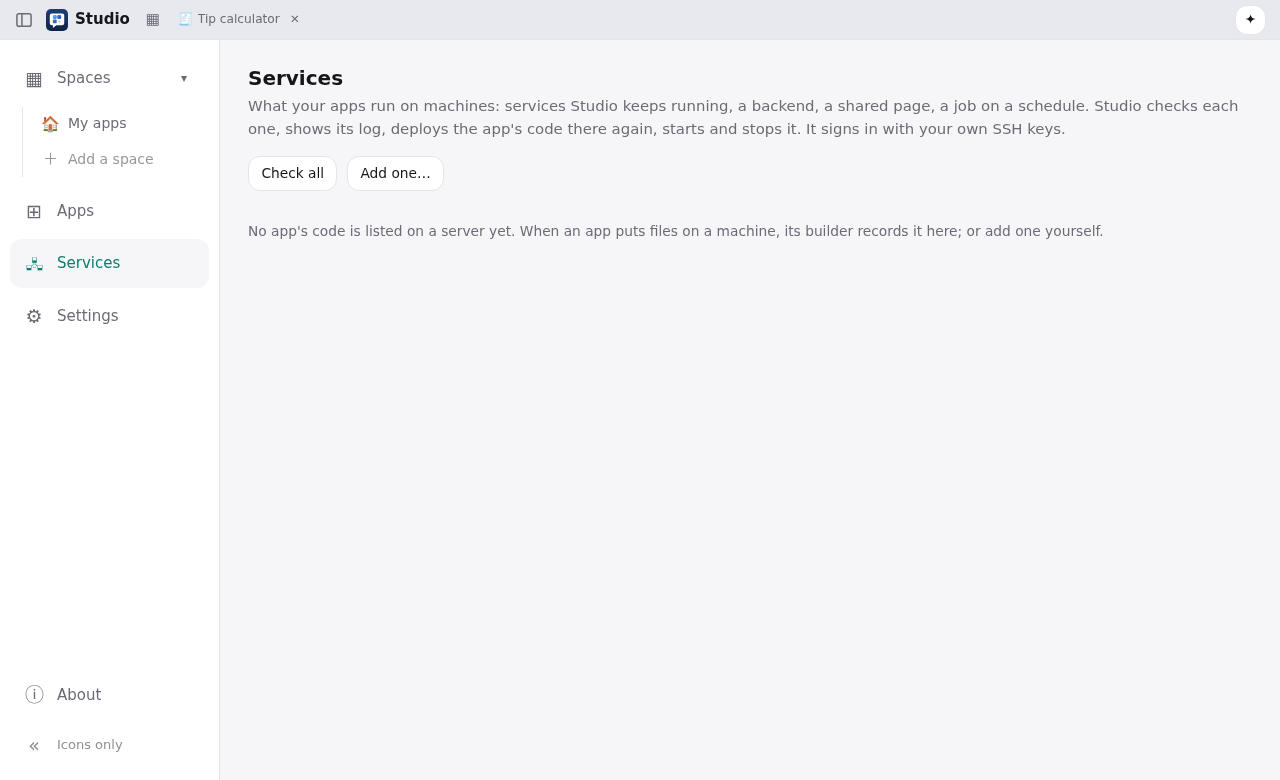
Some apps need something running all the time: a backend, a page people open, a job on a schedule. Services (in the rail, and as a view in each space) shows every one, wherever it runs:
- on this computer;
- on a server you reach with SSH. Studio uses your own SSH keys and never asks for a password.
Each card shows the app, where it runs, the spaces it is in, and its state:
- Running, Not running, Running with an error, Stopped;
- scheduled jobs;
- whether the code there changed, or changed here since the last deploy.
On a card you can:
- Check, Start, Stop, Restart, Open, and read the Log;
- Deploy the app's code there again. Studio asks before writing over changes made on the server.
- Ask the AI to fix this when a service is in trouble;
- change Settings… (values the service reads);
- turn alerts to your phone on or off;
- under ⋯: Forget takes the card off the list and leaves the machine as it is; Remove from the server… stops it, keeps a copy of the folder here and then deletes it there.
Usually the AI sets a service up when an app needs one, and records it here. You can also add one yourself with Add one…: choose the app, the machine, the folder and the start and stop commands.
Machines Studio may use
Settings → Machines lists the hosts in your SSH config, each with a tick for Studio may use it. Anything that sets things up on a machine shows a plan first, and nothing runs until you allow it on this computer.
Publish publicly in one step
A service with a port can get a fixed public address: https://go.palmtop.page/<name>.
- On the service's card, choose Publish publicly…
- Sign in with your email and the code it sends. A PriorStates account is needed only for this.
- Choose the name in the address (3-30 characters; Studio says at once if it is free) and the port it answers on.
- Agree to the terms and publish.
Anyone with the address can open it, while that computer is on and connected. Unpublish takes it down, and the name stays reserved for you for 30 days. You can also reserve names on your account page.