
Docs › Studio › Studio on your computer
Spaces
A space is a view of a set of apps for one purpose: your household, the bakery's orders, a research project. Each space has its own layout, drawing, notes, conversations, documents, services and, if you want, a code base. One app can be in several spaces and keeps the same data in each.
Your spaces are listed under Spaces in the rail. The first one is My apps.
Add a space
Press + Add a space under Spaces. Then:
- Give it a name and an icon. Pick an emoji, or choose a picture.
- Say what it is for (optional). For example, Run the bakery's orders, from the phone call to the invoice. If you do, Studio writes it into the space's Notes and opens a discussion to think it through with you.
- Choose where it is kept:
- On this computer.
- In a folder: a project folder your team shares, such as a git repository. Studio keeps the space in that folder
(
studio-space.json,NOTES.mdand an apps folder), so it can be committed and shared. - From a git repository: Studio clones it with your own git sign-in and opens it as a space.
- Or use a ready-made space. Packs of apps that work together. Use installs them.
Two ways to see a space
Switch with the icons at the start of the bar:
- ▦ Tiles. Your apps as tiles on shelves.
- Click a tile to open the app inside Studio.
- Ctrl/⌘-click opens it in your browser.
- Arrange lets you add groups, rename them, sort them and drag apps between them.
- ◇ Canvas. A drawing of the space.
- Press Edit, then move apps around, draw arrows between them ("how work moves from the order form to the invoice"), and add groups, notes and text.
- Holder cards marked To build are apps the space still needs. Open one, and Build starts with a brief already written.
More views appear once a space uses them, or under ⋯:
- 📄 Documents: what this space's discussions wrote and its apps saved. See Documents and research.
- 🔬 Research: questions, numbers, findings and reports.
- 🖧 Services: what this space's apps run on machines.
- Code base…: a folder of code the AI can work in, from this space. See Code bases and components.
Add apps to a space
Press + on the bar, or right-click the space's background. Then choose:
- New app
- Add an existing app…
- Get apps from the Gallery
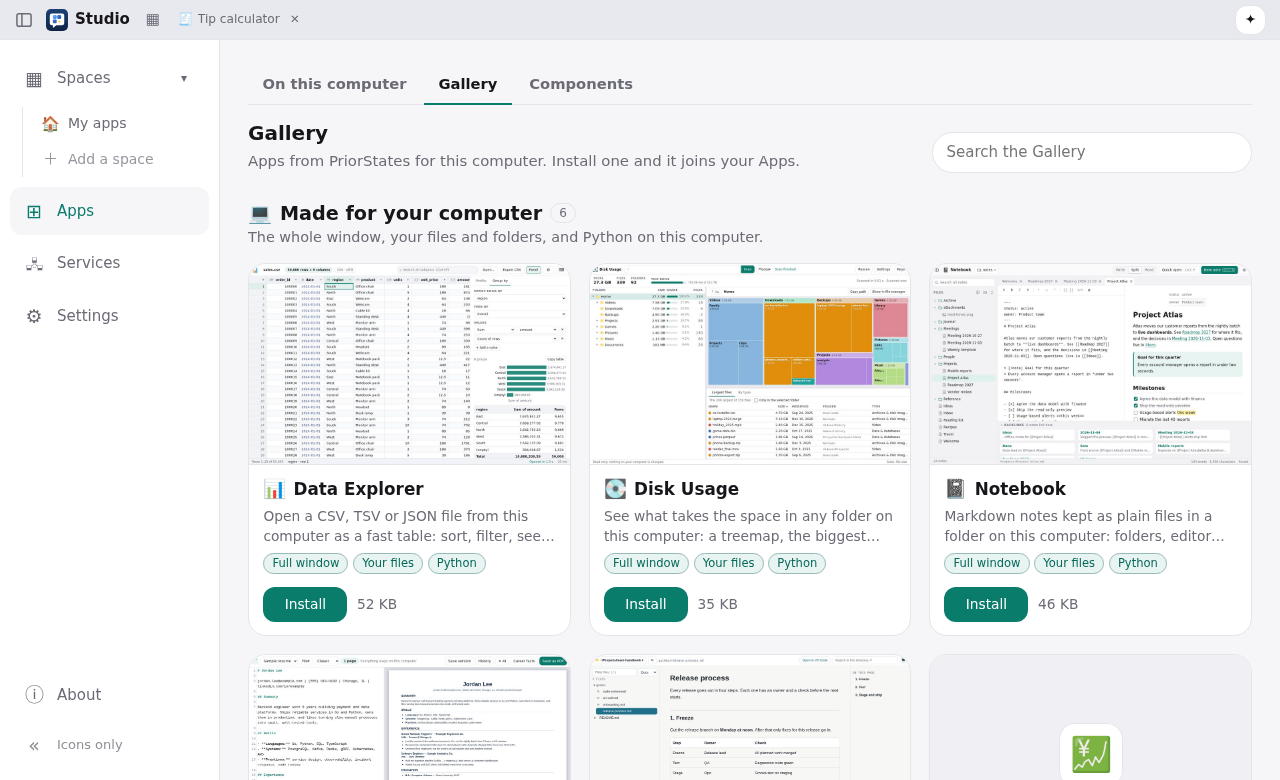
A tile's ⋯ menu has the rest:
- Change: opens Build. For an app from the Gallery or another device, Studio first makes your own copy.
- Send…: a link that installs the app on a phone or on the web.
- Send to my phone
- Duplicate here…
- Move to a group
- Show in spaces…
- Remove from this space: the app stays on the computer.
- Delete…: the app goes to Recently deleted, where Bring back restores it.
Let the AI arrange a space
Open the side panel with ✦ Build at the right end of the bar:
- Build rearranges the space for you. Try Arrange my apps by how my day goes, or Show how work moves between these apps. ↶ undoes the last change to the space.
- Discuss talks the space through. When you agree on a design, ✦ Design this space hands it to Build.
- Notes holds facts for this space that the AI reads.
Folder spaces and git
A space kept in a folder has a ⎇ button showing the branch and its state (changes, behind, ahead). It opens Git, where you can:
- see the changes, grouped by the space, its notes and each app;
- Commit, Commit & push, Pull, Push;
- connect a remote;
- when a pull meets changes on both sides, choose Keep mine or Keep theirs for each file.
Studio notices changes made in the folder by other tools, and offers to reload an app that changed.
To move an app into a folder space, use Put in a folder space… on the app's tile. You can move it (with its data, history and chats) or copy it.
Space settings
When you have more than one space, ⚙ on the bar lets you:
- rename the space or change its icon;
- move it left or right;
- choose its apps;
- delete it. No app is removed; an app only that space showed moves to the next space.